I thought I would some more information about how to run Lucee servers from LuCLI with some of the features, I did copy this from my blog and posted it here… omg… I am blogging again! Here comes 2026!
Over the years of building CFML apps, one of the most boring-but-essential parts of the job has been “just getting a Lucee server running” for a project.
Different versions, different ports, different environments… and that’s before you even write a line of code.
LuCLI exists to remove as much of that friction as possible. Just let comand lucli server do the heavy lifting. It will create a lucee.json file with some configuration and then start up a server for you.
In this post I’ll walk through how I actually use the server commands day-to-day to spin up, poke at, and tear down Lucee servers.
The server command (the one you’ll use a lot)
All the server lifecycle bits are grouped under a single entry point:
lucli server [COMMAND]
Run this to see everything it can do:
lucli server --help
You’ll see commands like:
- start Start a Lucee server instance
- run Run a Lucee server in foreground (Ctrl+C to stop)
- stop Stop a Lucee server instance
- restart Show status of server instances
- status Show status of server instances
- list List all server instances
- prune Remove stopped server instances
- get Get configuration values from lucee.json
- set Set configuration values in lucee.json
- log View server logs
- open Open a running server instance in a browser
- monitor Monitor server performance via JMX
Let’s go through the ones you’ll probably care about first.
Your first LuCLI-managed Lucee server
The basic pattern is:
- Go to a project directory
- Create an
index.cfmfile - Run
lucli server start - And a server will start up and your browser will magically
Once started you will get a default lucee.json file, ready for your config.
{
  "name": "my-app",
  "version": "6.2.2.91",
  "port": 8080,
  "webroot": "./"
}
Behind the scenes LuCLI will:
- Read
lucee.json - Create (or reuse) a server instance with that name
- Download the lucee express version (if it hasnt downloaded it already)
- Spin up Tomcat + Lucee in the background
- Store everything under your LuCLI home so it can be restarted later
You can override bits from the command line when you need to:
# Change the name
lucli server start --name my-app-dev

# Try a different port
lucli server start --port 8081

# Pin a specific Lucee version
lucli server start --version 6.2.2.91
Once you get used to this flow, “I need a Lucee 6.2 server for this repo” becomes a muscle-memory command instead of a half-hour setup exercise.
start vs run - background or noisy foreground
By default I tend to run servers in the background and forget about them until I need to stop them.
That’s what start does:
lucli server start
If I’m debugging something messy or I really want to see what Tomcat + Lucee are doing, I switch to run:
lucli server run
The difference:
start– daemon-style, logs go to files, your shell is freerun– attached to your terminal, logs stream right in front of you,Ctrl+Cstops the server
I’ll often use run when wiring up something new, then switch back to start once things are behaving.
Environments: dev, staging, prod (without three different configs)
One of the reasons I built LuCLI was to avoid having lucee.dev.json, lucee.staging.json, lucee.prod.json, and hoping I didn’t mix them up.
Instead, you define a base config and then layer environments on top:
{
  "name": "my-app",
  "version": "6.2.2.91",
  "port": 8080,
  "webroot": "./",
  "environments": {
    "dev": {
      "port": 8081
    },
    "prod": {
      "port": 80,
      "jvm": {
        "maxMemory": "2048m"
      }
    }
  }
}
Then you pick what you want at startup:
# Use the dev overrides
lucli server start --env dev

# Use the prod overrides
lucli server start --env prod
If you’re the sort of person (like me) who likes to see what config is actually going to be used, there’s a --dry-run flag:
lucli server start --env prod --dry-run
That prints the merged configuration instead of starting the server, which is great for catching “why is this still on port 8080?” moments.
Managing what you’ve started: list, status, stop, restart, prune
Once you’ve started a few servers, you’ll eventually forget what’s running where.
LuCLI keeps track of server instances for you.
# Show all known servers and their state
lucli server list

# just show the ones that are running
lucli server list --running

# Show detailed status for the server in the current directory
lucli server status

# Stop a specific server by name
lucli server stop --name my-app

# Restart it (config changes, new Lucee version, etc.)
lucli server restart --name my-app

# Clean up stopped instances you don’t care about anymore
lucli server prune
I use list a lot when I’ve been hopping around projects and want a quick “what’s currently running on this machine?” snapshot.
Seeing what’s going on: logs, open, monitor
A running server is only useful if you can see what it’s doing.
LuCLI tries to make that as low-friction as possible.
Logs without spelunking through folders
Instead of hunting for catalina.out or some random logs directory, you can just:
# Tail the main server log for the current project
lucli server log

# Be explicit and follow output as it grows
lucli server log --type server --follow
This is usually the fastest way to see Lucee stack traces and Tomcat grumbles when something blows up.
Open the server in your browser
Small but handy:
lucli server open
lucli server open --name my-app
That will launch your default browser pointed at the correct URL for the running server.
I use this constantly when bouncing between multiple versions or ports.
Monitor it via JMX
For the “how hard is this thing working?” question, there’s a simple JMX-powered dashboard:
lucli server monitor
lucli server monitor --name my-app
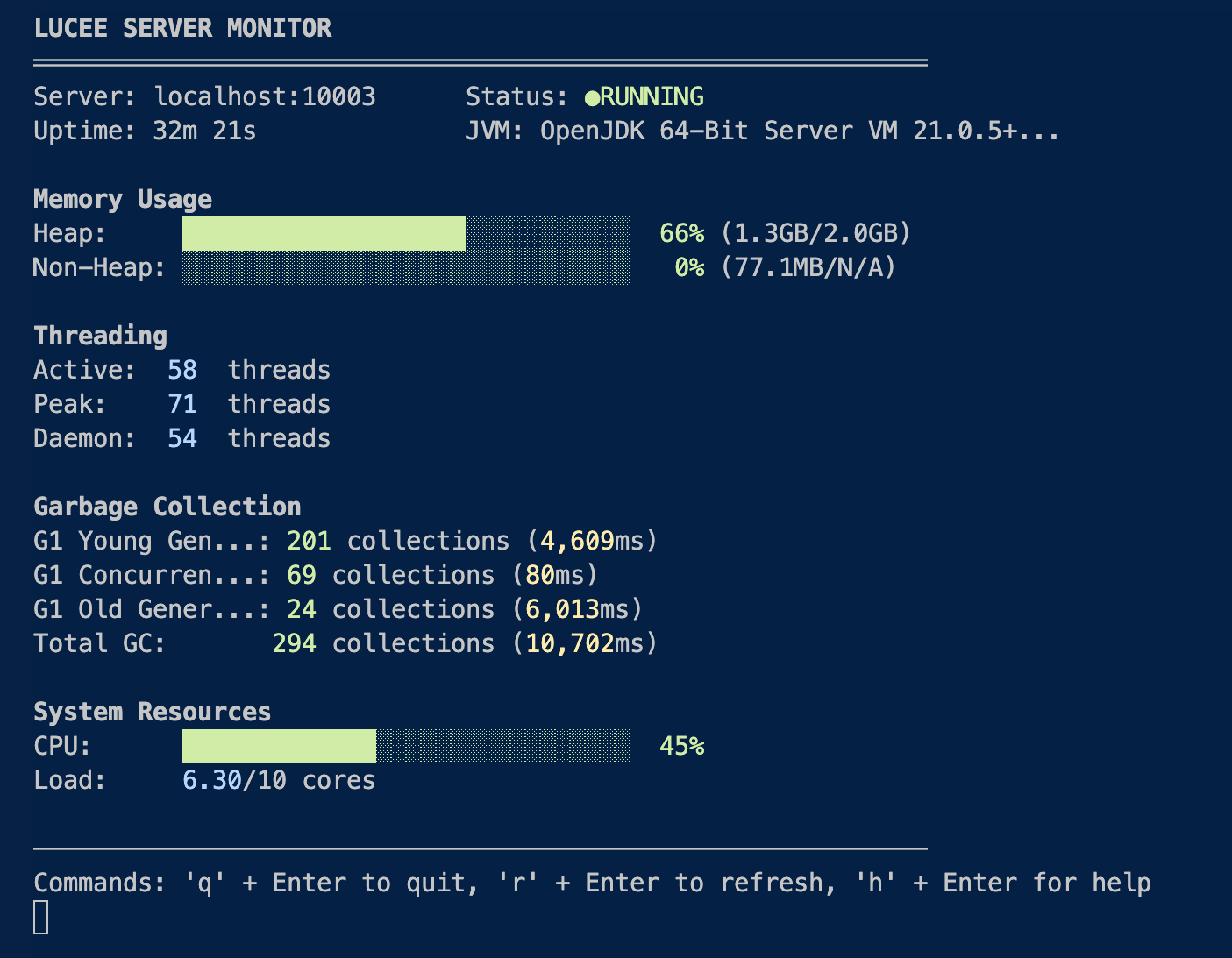
You’ll get a live view of memory, threads, GC activity and so on – great for tracking down “it works locally but melts in staging” style problems.
A safe place for throwaway servers
When I’m experimenting with LuCLI itself, or testing a feature, I try not to pollute real project directories with random lucee.json files and temporary servers.
Instead I keep a demo_servers/ folder around and do this:
mkdir -p demo_servers
cd demo_servers

lucli server start --name test-server-1
Now any scratch configuration or weird test server lives under there, and I can happily prune or delete things without worrying about a real app.
The short version
If you take nothing else from this post, it’s this:
- Run
lucli server start - Edit
lucee.jsonto your liking - Use
list,status,log,open, andmonitorto see what’s going on
Once you get into the rhythm, starting and managing Lucee servers stops being a chore and becomes just another quick terminal command in your day.
As always, let me know what you think. Take LuCLI out for a spin and see if it helps your workflow!