An easier way would be to set it in your Application.cfc
- First, you need to install the OSGi bundle (an exciting feature of Lucee 5). You do that by adding a bundle (which is a jar file with specific conventions, like the
MANIFEST.MFfile, etc.
Fortunately, the pgjdbc drivers are already “OSGi bundles”, so all you have to do is download the jar file from https://jdbc.postgresql.org/download.html and save it to your {lucee-server}/bundles directory.
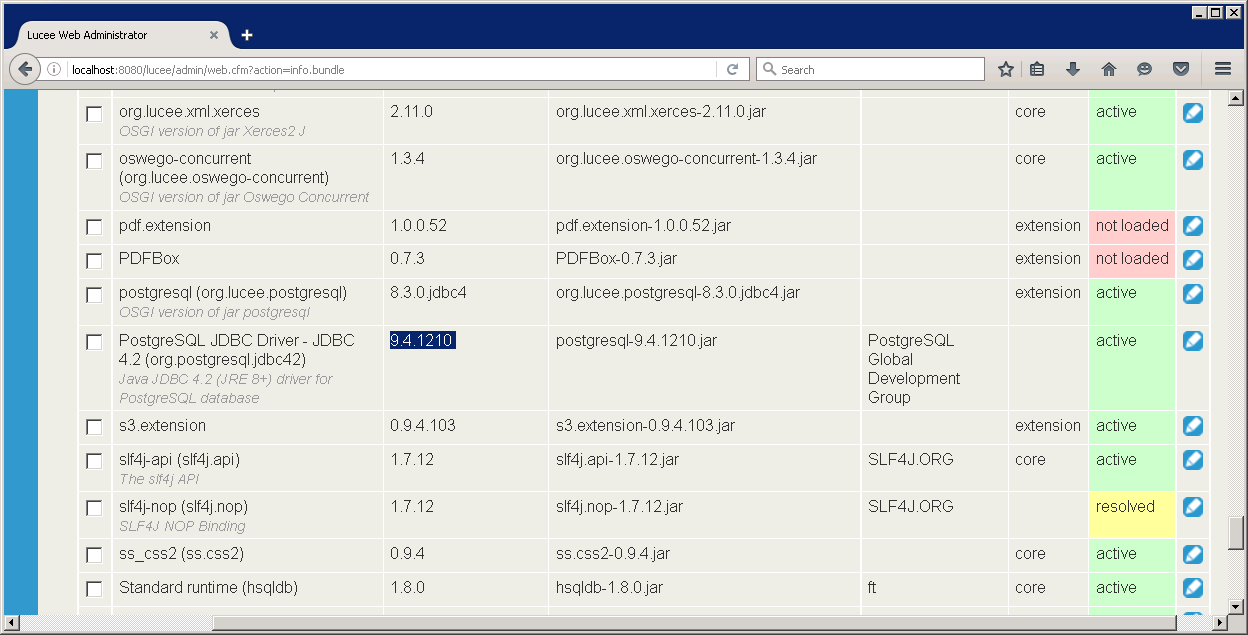
Go to the Lucee Admin and click on Bundle (jar) to verify that Lucee “sees” the new bundle:
- Create a PostgreSQL Datasource with the the current driver, and go to Edit Datasource and scroll all the way to the bottom, where you can find a snippet that you can use in Application.cfc; It will look something like this (with your settings of database name, username, and password:
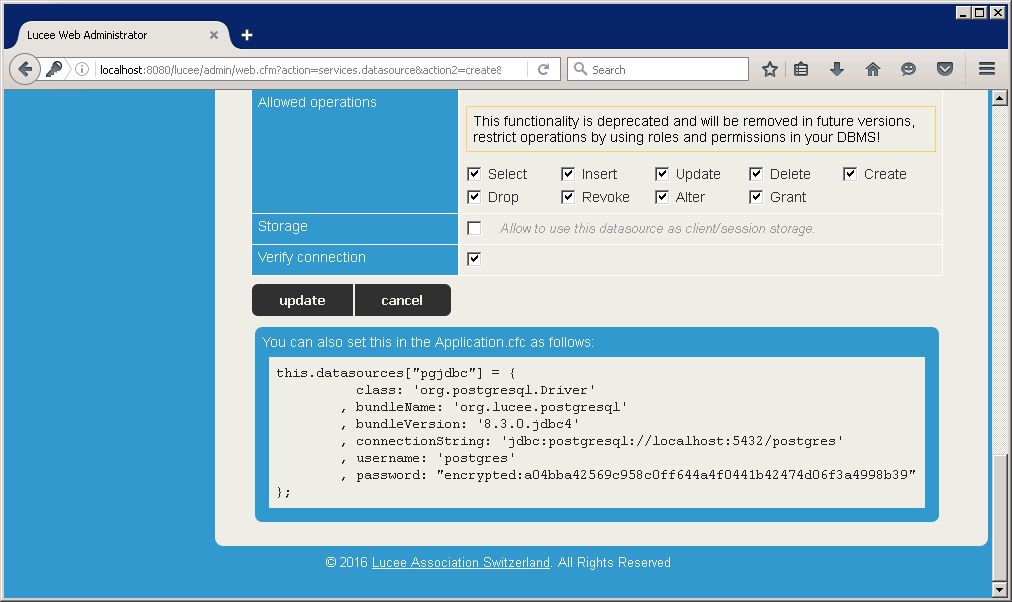
- Copy the snippet and paste it in the body (i.e. not inside any function) of Application.cfc
    this.datasources["pgjdbc"] = {
          class: 'org.postgresql.Driver'
        , bundleName: 'org.lucee.postgresql'
        , bundleVersion: '8.3.0.jdbc4'
        , connectionString: 'jdbc:postgresql://localhost:5432/<DATABASE-NAME>'
        , username: '<USERNAME>
        , password: "<PASSWORD>"
    };
- Update the snippet to reflect the new bundle’s name and version (I’m using the jdbc42 edition for Java 1.8, if you use a different one then check the bundle symbolic name inside the Jar in META-INF/MANIFEST.MF:
        , bundleName: 'org.postgresql.jdbc42'
        , bundleVersion: '9.4.1210'
- Test your connection with:
    <cfdbinfo name="qDbInfo" type="version">
    <cfdump eval="qDbInfo">
It should look something like this:

Igal
_MODERATOR: Hmm… for some reason this didn’t quite make it across in the migration from Redirecting to Google Groups